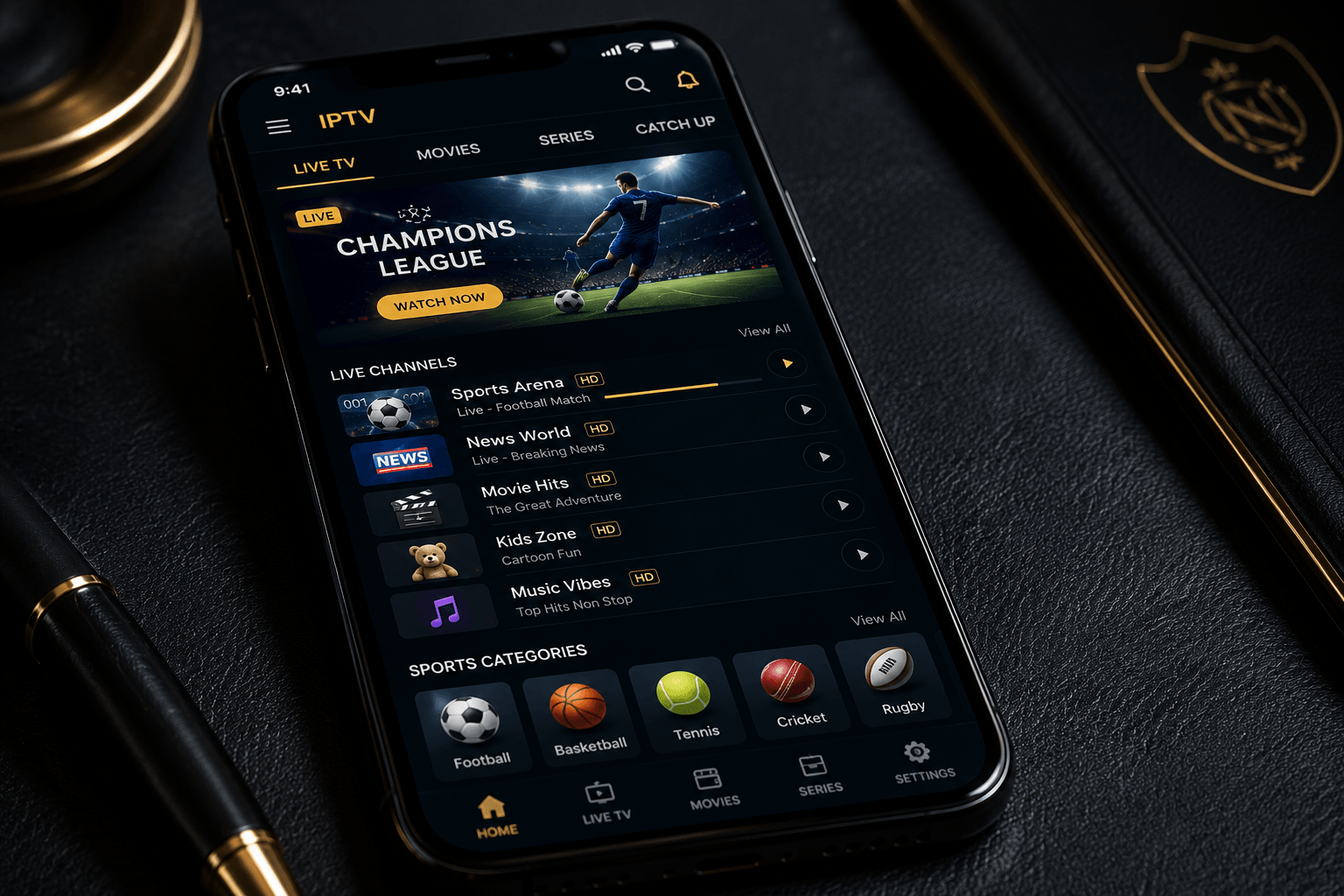
IPTV Smarters Pro Setup Guide 2026 — Complete Tutorial for All Devices
What Is IPTV Smarters Pro?
IPTV Smarters Pro is the most widely used cross-platform IPTV player in 2026. Unlike TiviMate (Android/Fire TV only) or SS IPTV (Samsung only), Smarters Pro runs on every major platform — iPhone, iPad, Android, Amazon Firestick, Samsung Smart TV, LG Smart TV, Windows PC and Mac — making it the single app that works regardless of what device you’re on. It’s free to download, supports both M3U playlists and Xtream Codes login, and includes a full EPG, VOD browser, catch-up TV, and parental controls.
IPTV Smarters Pro — Key Features
- ✅ Universal compatibility — iPhone, Android, Firestick, Samsung TV, LG TV, PC, Mac
- ✅ M3U playlist support — paste your URL, channels load automatically
- ✅ Xtream Codes API — server URL, username and password login
- ✅ Full 7-day EPG — programme guide for all channels
- ✅ VOD browser — movies and series organised by genre and category
- ✅ Catch-up TV — replay past broadcasts (where supported by provider)
- ✅ Multiple profiles — different user profiles with separate playlists on one device
- ✅ Parental controls — PIN-lock specific categories
- ✅ Picture-in-Picture — on supported iOS and Android devices
- ✅ Free to download — available on App Store, Google Play and Amazon App Store
Before You Start — What You Need
Before setting up IPTV Smarters Pro, make sure you have the following from your IPTV Elite Pro welcome email:
- 🔗 M3U URL — a web link ending in .m3u or .m3u8 containing your full channel list
- 📺 EPG URL — the electronic programme guide link for on-screen scheduling
- 🔒 Xtream Codes credentials (alternative to M3U) — server URL, username, password
Both M3U and Xtream Codes work equally well in Smarters Pro. M3U is slightly faster to set up; Xtream Codes gives the app access to your full VOD and catch-up library via the server API. If you have both, use Xtream Codes for the best experience.
📱 IPTV Smarters Pro Setup on iPhone and iPad
Method 1 — M3U URL
- Step 1: Open the App Store, search IPTV Smarters Pro and install (free)
- Step 2: Open the app and tap Add New User
- Step 3: Select Load your playlist or file/URL
- Step 4: Enter a name (e.g. “IPTV Elite Pro”), paste your M3U URL in the playlist field
- Step 5: Tap Add User — your channels will load within 30 seconds
- Step 6: Tap Live TV to browse channels, or Movies / Series for the VOD library
Method 2 — Xtream Codes
- Step 1–2: Same as above — install and tap Add New User
- Step 3: Select Login with Xtream Codes API
- Step 4: Enter your server URL, username and password from your welcome email
- Step 5: Tap Add User — the app connects to the server and loads all live channels, VOD and catch-up
iPad tip: On iPad, enable Picture-in-Picture in iOS Settings → General → Picture in Picture. You can then watch a live match in a floating window while browsing the EPG or VOD library.
📱 IPTV Smarters Pro Setup on Android
- Step 1: Open Google Play Store, search IPTV Smarters Pro and install (free)
- Step 2: Open the app and tap Add New User
- Step 3: Choose Load your playlist or file/URL (for M3U) or Login with Xtream Codes API
- Step 4: Enter your credentials from your IPTV Elite Pro welcome email
- Step 5: Tap Add User — channels and VOD load automatically
- Step 6: For the best experience on Android, go to Settings → EPG and add your EPG URL for the full 7-day programme guide
📺 IPTV Smarters Pro Setup on Amazon Firestick
IPTV Smarters Pro is available directly on the Amazon App Store — no sideloading or Developer Options required. This makes it the easiest IPTV app to install on Firestick.
- Step 1: On your Firestick home screen, go to Find → Search and type IPTV Smarters Pro
- Step 2: Select it from results and tap Download (free)
- Step 3: Open the app and tap Add New User
- Step 4: Choose your login method — M3U URL or Xtream Codes
- Step 5: Enter your IPTV Elite Pro credentials and tap Add User
- Step 6: Navigate using your Firestick remote — use the directional pad to browse Live TV, Movies, Series and EPG
Firestick tip: While Smarters Pro works well on Firestick, if you want the best possible EPG experience and channel-switching speed on Fire TV, consider also trying TiviMate — it requires sideloading but is significantly more polished for TV use.
📺 IPTV Smarters Pro Setup on Samsung Smart TV
IPTV Smarters Pro is available on some Samsung Smart TV models via the Samsung Smart Hub app store. If it’s not available on your model, SS IPTV is the recommended alternative and works identically.
- Step 1: Press Home on your Samsung remote, go to Apps and search IPTV Smarters
- Step 2: Install and open the app
- Step 3: Select Add New User → Load playlist or URL
- Step 4: Enter your M3U URL using the on-screen keyboard
- Step 5: Tap Add User — your full channel list loads on your TV
💻 IPTV Smarters Pro Setup on Windows PC
- Step 1: Go to the Microsoft Store, search IPTV Smarters Pro and install (free)
- Step 2: Open the app and click Add New User
- Step 3: Choose M3U URL or Xtream Codes login
- Step 4: Enter your IPTV Elite Pro credentials and click Add User
- Step 5: Your full channel list, EPG and VOD library load automatically
PC tip: On Windows, you can run IPTV Smarters Pro in a windowed mode alongside other applications, or go full-screen for the TV experience. The keyboard shortcut F11 toggles full-screen in most versions.
IPTV Smarters Pro — Troubleshooting Common Issues
Channels Not Loading
If channels fail to load after entering your M3U URL, check: (1) the URL is copied correctly with no extra spaces, (2) your IPTV Elite Pro subscription is active, (3) your internet connection is working. Try refreshing the playlist in Settings → Playlist → Update.
EPG Not Showing
If the programme guide is empty, go to Settings → EPG and confirm your EPG URL is entered correctly. EPG data can take 2–5 minutes to load on first launch. Force a refresh by tapping Update EPG in settings.
Buffering or Freezing
Buffering is almost always a network issue rather than an app issue. Try: (1) switching from Wi-Fi to wired Ethernet if possible, (2) moving closer to your router, (3) restarting your router, (4) changing to a different stream quality in the player settings (Full HD instead of 4K if your connection is marginal).
App Crashes on Firestick
On older Firestick models (1st or 2nd generation), Smarters Pro can crash due to limited RAM. Clear the app cache via Settings → Applications → IPTV Smarters Pro → Clear Cache, or consider upgrading to a Firestick 4K Max which handles large channel lists (45,000+) without issues.
IPTV Smarters Pro vs TiviMate — Which Should You Use?
- 📱 Use Smarters Pro if: you need one app that works across multiple devices (iPhone + Android + TV), you want the simplest setup, or you’re on a Samsung/LG TV without a Firestick
- 📺 Use TiviMate if: you primarily watch on a Firestick or Android TV box and want the best possible EPG interface, fastest channel switching, and Picture-in-Picture multi-stream
- 💻 Use both if: you watch on Firestick at home (TiviMate) and on iPhone when travelling (Smarters Pro) — the same M3U URL and Xtream Codes credentials work in both apps simultaneously
Related Device Setup Guides
- 📺 TiviMate setup guide — best app for Firestick and Android TV
- 📺 IPTV on Firestick 2026 — full setup guide
- 📺 IPTV on Samsung and LG Smart TV
- 📱 Best IPTV app for iPhone and iPad
- 📱 Best IPTV app for Android
- 🔄 IPTV M3U playlist guide — understanding your credentials
- 🏆 Best IPTV Service 2026
Frequently Asked Questions — IPTV Smarters Pro
Is IPTV Smarters Pro free?
Yes, IPTV Smarters Pro is completely free to download on the App Store, Google Play Store, Amazon App Store and Microsoft Store. You only need an active IPTV subscription — like IPTV Elite Pro — which provides your M3U URL or Xtream Codes credentials. The app itself has no cost and no in-app purchases.
What devices does IPTV Smarters Pro support?
IPTV Smarters Pro supports iPhone (iOS 13+), iPad, Android phones and tablets (Android 5.0+), Amazon Firestick (all models), some Samsung and LG Smart TVs, Windows 10/11 PC, and Mac. It’s the most universally compatible IPTV player available in 2026.
How many playlists can I add to IPTV Smarters Pro?
IPTV Smarters Pro supports multiple user profiles, each with its own playlist. You can add several M3U or Xtream Codes accounts and switch between them from the user selection screen on app launch. This is useful if you have multiple subscriptions or want to separate different channel packages.
Does IPTV Smarters Pro support 4K streams?
Yes. IPTV Smarters Pro supports 4K HDR streams on all compatible devices. On iPhone 14 Pro and above, iPad Pro, Android flagship devices, and Firestick 4K/4K Max, 4K streams from IPTV Elite Pro Diamond play without any additional configuration. A minimum internet connection of 25 Mbps is recommended for stable 4K playback.
What’s the difference between M3U and Xtream Codes in Smarters Pro?
M3U is a simple playlist file — it contains the list of channels and their stream URLs. Xtream Codes is a full server API connection that gives the app access to live channels, VOD, series and catch-up TV through a single authenticated connection. Both work well; Xtream Codes provides a richer experience with better VOD and catch-up integration.
7 Responses